Make a recovery plan before you need one
When to use snapshots and when to use backups, how to test a restore, and what to do if you think a server has been broken into.
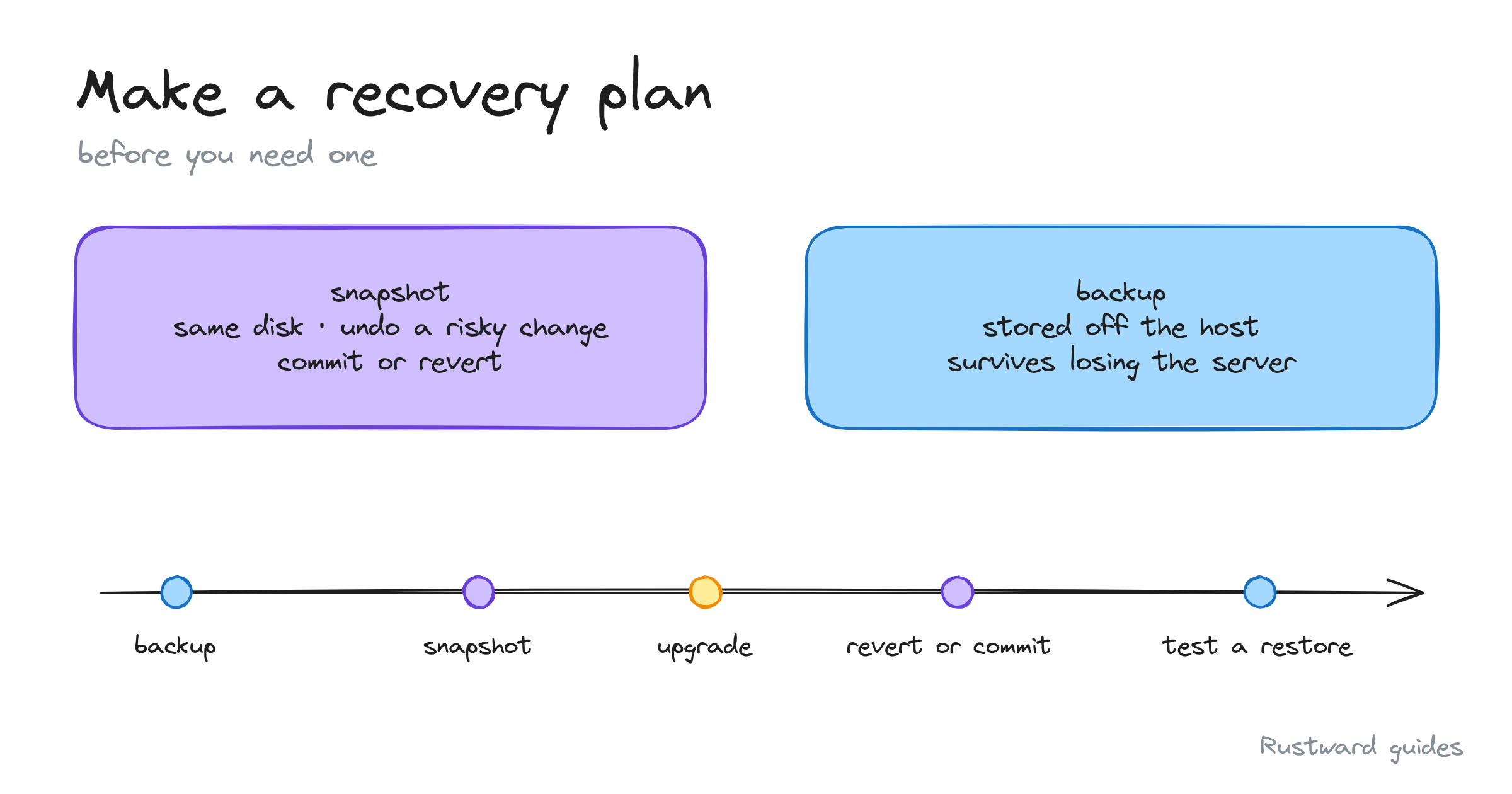
Sooner or later, something goes wrong. An upgrade breaks the app, someone deletes the wrong directory, or a server gets broken into. How bad that day is depends almost entirely on what we set up beforehand.
In this guide we’ll put together a simple plan: what to save, when, how to know it works, and what to do when things go wrong.
Snapshots and backups do different jobs#
Our servers have two ways of saving a disk, and they’re not interchangeable:
| Snapshot | Backup | |
|---|---|---|
| What it’s for | Undoing a change we’re about to make | Getting a server back after losing data or the server |
| Where it lives | On the same disk as the server | Stored away from the server’s host |
| How long it stays | Until we commit or revert it, up to 30 days | Until we delete it, even after the server is gone |
| How many | One at a time | As many as we keep |
A snapshot is the safety net for a risky change. A backup is the copy we fall back on when something is really lost.
Snapshot before every risky change#
Before an OS upgrade, a big package update, a database migration, or anything we’re not sure about, we take a snapshot. We set it to commit itself after a day or two, so it doesn’t sit there forever.
If the change goes well, we commit it, or just let it commit itself. If it doesn’t, we revert, and the disk is back to how it was a moment ago.
Take backups on a rhythm#
Backups are taken on demand, so we decide when. A good rhythm for most servers:
- Before and after big changes, once things are working.
- Regularly, weekly for most servers or daily for ones with data that changes a lot. The API makes this easy to put in a scheduled job.
We name them so we can tell them apart later, like “Before upgrading to Ubuntu 26.04”.
Keep a second copy of what really matters#
A disk backup brings back the whole server, but restoring one replaces everything on the disk. For a database, we also want dumps we can restore on their own, ideally kept somewhere other than the server:
pg_dump -Fc mydb > mydb-$(date +%F).dumpmysqldump --single-transaction mydb > mydb-$(date +%F).sqlThen we copy them off the server, to object storage or another machine. If the server and its backups are ever both out of reach, these are what we fall back on.
Test a restore#
A backup we’ve never restored is a guess. A few times a year, we deploy a spare server in the same location and restore a recent backup onto it. Then we check:
- it boots and we can log in
- the app starts and the data is recent
- we know how long it took
That last one is worth writing down. It’s how long we’d be down on a bad day. We destroy the test server when we’re done.
Write the plan down#
When something breaks, nobody thinks clearly. A short note, kept somewhere other than the server, saves a lot of stress:
- which servers matter, and what’s on them
- where the backups and database dumps are, and how recent they should be
- the steps to restore, and who’s allowed to do it
- who to tell: the team, customers, and our support if it’s something on our side
If we think a server’s been broken into#
Signs include logins we don’t recognise, new users or SSH keys, unknown processes using a lot of CPU, or our provider reporting abuse from the server’s address. If that happens:
- Don’t trust the server. An attacker with root can hide almost anything, so cleaning it up by hand isn’t safe.
- Take a backup of it as it is. It’s evidence, and it helps us work out how they got in. We don’t restore from it.
- Cut off access. Revoke any API tokens, passwords and keys that were on the server, and change them wherever else they were used.
- Rebuild. We rebuild the server from a fresh image, or deploy a new one, then restore our data from a backup or dump taken before the break-in.
- Close the hole before putting it back online: patch whatever was exploited, and go through hardening SSH, the firewall and what’s exposed.
Next steps#
- Turn on deletion protection for servers we can’t afford to lose, on the server’s Settings tab. See Servers.
- Keep servers patched automatically, the best way to never need the last section.