Set up a firewall that blocks by default
Block every incoming connection except the ones you choose, with ufw on Ubuntu and Debian or firewalld on AlmaLinux and Rocky Linux, and avoid the Docker gotcha.
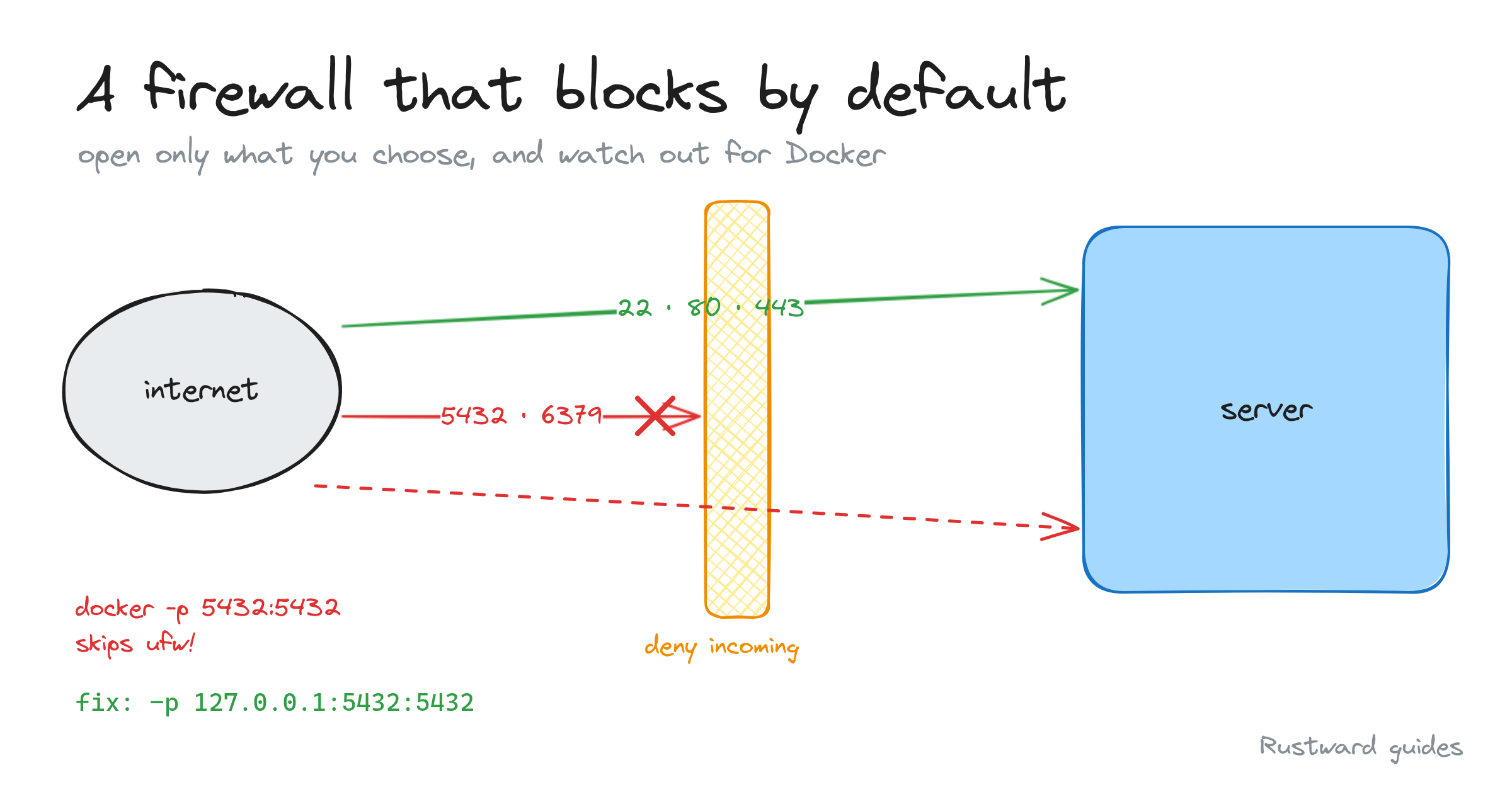
A new server often has more listening than we realise: a database installed for testing, an admin panel, a metrics endpoint. A firewall that blocks everything by default means a forgotten service stays private, and we only open the ports we’ve decided to open.
In this guide we’ll set one up, open SSH and web traffic, and deal with the one thing that catches nearly everyone, which is Docker.
Allow SSH before turning the firewall on
If we turn on a firewall that blocks SSH, we’re locked out of our own server. Every set of steps below allows SSH first. We keep a second session open while we work, and take a snapshot if we’re nervous.
Ubuntu and Debian: ufw#
Install ufw#
ufw comes with Ubuntu. On Debian we install it:
sudo apt install ufwBlock by default, allow SSH, turn it on#
We set the defaults, allow SSH, then turn it on:
sudo ufw default deny incoming
sudo ufw default allow outgoing
sudo ufw allow OpenSSH
sudo ufw enable
Open only what we need#
For a web server:
sudo ufw allow 80,443/tcpAllow a port from one address only
For something like a database we reach from our office, we open the port to that address and nobody else:
sudo ufw allow from 198.51.100.7 to any port 5432 proto tcpCheck the rules#
We list them with numbers, so we can remove one by its number:
sudo ufw status numbered
Status: active

     To                         Action      From
     --                         ------      ----
[ 1] OpenSSH                    ALLOW IN    Anywhere
[ 2] 80,443/tcp                 ALLOW IN    Anywhere
[ 3] OpenSSH (v6)               ALLOW IN    Anywhere (v6)
[ 4] 80,443/tcp (v6)            ALLOW IN    Anywhere (v6)
sudo ufw delete 2
ufw applies the same rules to IPv6 as long as IPV6=yes is set in /etc/default/ufw, which is the default.
AlmaLinux and Rocky Linux: firewalld#
Install and start firewalld#
We install and start firewalld if it isn’t running already:
sudo dnf install firewalld
sudo systemctl enable --now firewalld
See what’s allowed#
The default zone, public, blocks everything except a few services. We check which ones:
sudo firewall-cmd --list-all
public (active)
  target: default
  interfaces: eth0
  services: cockpit dhcpv6-client ssh
  ports:
ssh should be in the list.
Open what we need#
If cockpit is there and we don’t use it, we take it out. Then we open what we need:
sudo firewall-cmd --permanent --remove-service=cockpit
sudo firewall-cmd --permanent --add-service=http --add-service=https
sudo firewall-cmd --reload
--permanent saves the change. Without it, the rule is gone after a reload or reboot.
The Docker gotcha#
When a container publishes a port with -p 5432:5432, Docker adds its own firewall rules, and they’re checked before ufw’s. So the port is open to the whole internet even though ufw status doesn’t show it. This is how a lot of databases end up exposed.
The fix is to publish the port on localhost only, so it can be reached from the server but not from outside:
services:
  db:
    image: postgres:17
    ports:
      - '5432:5432'
      - '127.0.0.1:5432:5432'
If the port only needs to be reached by other containers, we don’t publish it at all. Containers on the same Compose network can already reach each other.
For a container that really does need to be public, like a web server on 80 and 443, publishing it normally is fine. We just remember that Docker, not the firewall, decides who reaches it.
Check from the outside#
The only test that really counts is trying to connect from somewhere else. From our own computer:
nmap -Pn 203.0.113.10
PORT    STATE SERVICE
22/tcp  open  ssh
80/tcp  open  http
443/tcp open  https
We should see only the ports we opened. Auditing what your server exposes goes into this in more detail.
Next steps#
- Harden SSH, the one port every server has open.
- Audit what your server exposes to find services we didn’t know were running.